
Approvals and notifications
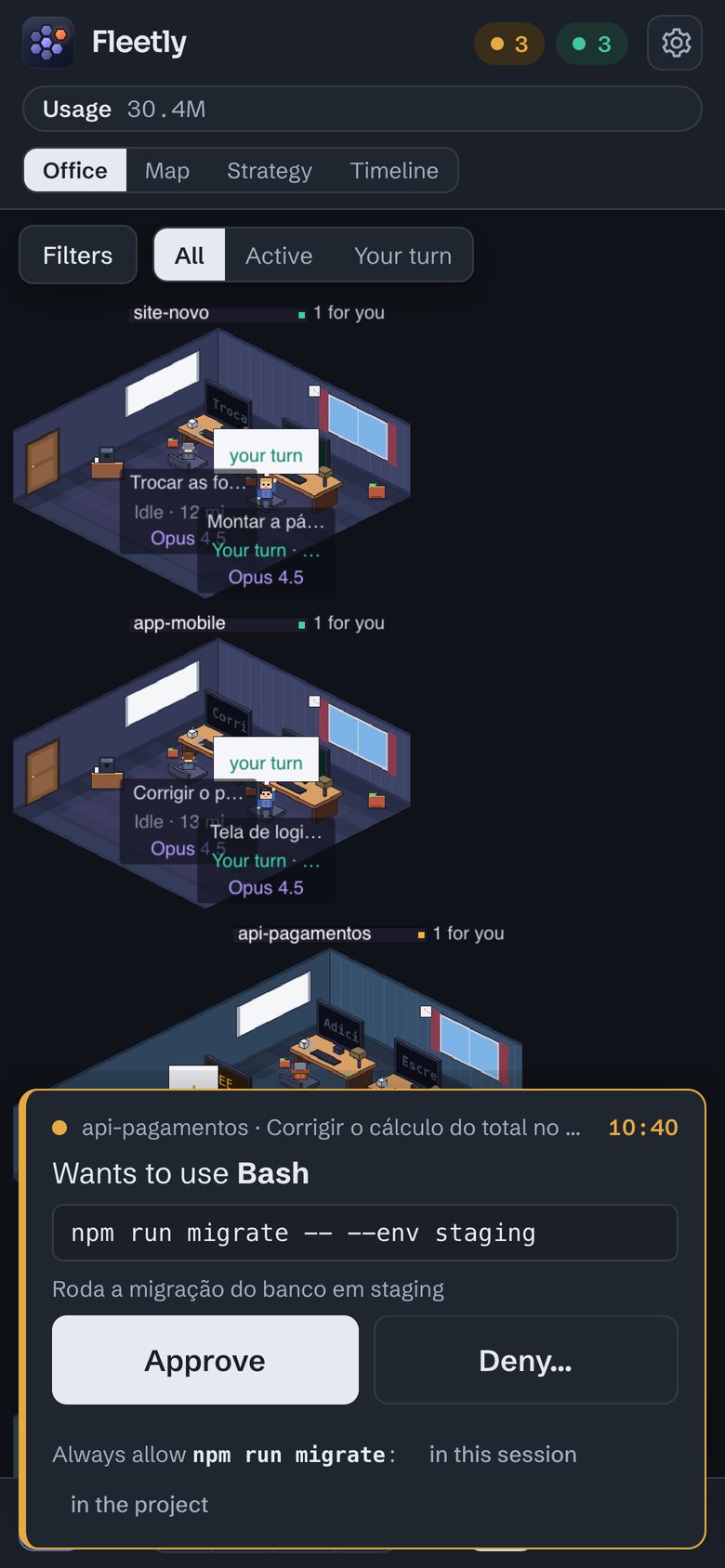
When the agent asks permission to run a command or edit a file, Fleetly brings the request to you: in the dashboard, on top of any screen, and on your phone, with Approve and Deny right in the notification.
Turn on the hooks
Requests reach Fleetly through a Claude Code and Codex hook. When you install with --hook (the Add machine command already has it), the installer asks before writing:
- for Claude Code,
PermissionRequestandPreToolUsein~/.claude/settings.json; - for Codex,
PreToolUseandPermissionRequestin~/.codex/hooks.json. Then approve the Fleetly hooks in Codex, which only runs approved hooks: in VS Code, click Review hooks, near the Codex message box, and Allow all; in the terminal, use/hooks. The Fleetly app shows whether approval is missing. Even before you approve, with the conversation open in the VS Code extension, Codex requests reach Fleetly: the collector follows the conversation through the extension’s channel (not documented by OpenAI). Without approved hooks, though, requests in the terminal stay there, and the building’s policy doesn’t apply before each Codex action.
Both files are backed up first. To write the hooks later:
node ~/.fleetly/collector/fleetly-collector.mjs hooksAntigravity needs nothing installed: in sessions Fleetly starts, the dashboard turns approvals on itself, for that session only. Antigravity sessions opened in a terminal keep their requests there. See Antigravity. GitHub Copilot works the same way: the dashboard handles approvals only in sessions it starts (GitHub Copilot).
Where to answer
In Settings → Notifications and approvals:
| Mode | What happens |
|---|---|
| Automatic (default) | At the computer, the request shows up in VS Code or the terminal, as always. After some time without touching the keyboard or mouse (2 minutes, adjustable from 30 seconds to 10 minutes), it comes to the dashboard and your phone. If you get back to the computer before answering, it shows up there again. |
| Always here | Every request waits for an answer in the dashboard and reaches your phone, even when you are at the computer. |
| Computer only | The dashboard holds no requests. |
While requests wait in the dashboard, the top bar shows the yellow Away mode badge. Tapping it opens Notifications and approvals with what it is and why it is on right now (the computer idle in Automatic mode, or the Always here option).
With the computer in more than one building, each building has its own mode: a request follows the mode of the building that owns the session’s folder. See More than one building on the same computer.
In Wait for an answer up to, pick from 1 minute to almost 10 (default: 5). With no answer by then, the request goes on to the usual dialog in VS Code or the terminal. With the collector off, nothing changes: Claude Code and Codex ask as always.
Always allow
Next to Approve, the request offers Always allow, with the narrowest rule that covers it (for example, npm run migrate), in this session or in the project. The next identical requests go through without asking, and the ones already waiting that the rule covers go through too. It doesn’t apply to commands the building’s policy says to always ask about or to require two-person approval.
In sessions open in VS Code with the Fleetly bridge, the options are the same ones the VS Code tab offers, such as accept all edits in this session.
Accept all in this session, on the request or in Details → Accept automatically, approves every request in that session right away, including the ones already waiting, until someone turns it off. It works with the hooks installed, through the VS Code bridge and in sessions Fleetly drives. The building policy’s blocks, two-person approval and "always ask" still apply. While it is on, the session shows Accepting all and how many requests were approved that way. Turning it on and off goes to the audit log, and each approval is in the agent trail, in Reports, as accept automatically, with the name of who turned it on.
Outbox: when an agent wants to send something out through a connector (an email via Gmail, a Slack message, a Linear comment, a post), the request arrives as Outbox, looking like its destination: the email with To, Subject and Message; the message as a bubble. Send sends it as is; Edit lets you change the text right there, and Send my version sends your text (in Claude Code); Another version… asks the agent to rewrite it, and the send comes back to you; Discard… asks for a reason, which the agent reads and continues without sending. Searching and reading through connectors don’t come here. Neither does writing that sends nothing to anyone (revealing a contact in Apollo, creating a record, changing a field): it arrives as a regular request, with Always allow (in this session or in the project) and Accept all in this session. A send always waits for you, even with Accept all in this session or Always allow, and the phone notification only opens the session, so you read it first. With no answer in 30 minutes, nothing is sent.
When the agent asks a question with options (like the choices Claude offers before going on), it arrives as Question from the agent: the card shows each question with its options, and you can type another answer. Answer only turns on once every question has one, and the answers go back to the agent as if you had picked them in the tab. A question is never answered on its own: Accept all in this session, Approve all and the buttons on the phone notification and in the app menu don’t apply to it. For sessions in VS Code, it reaches Fleetly with the bridge from Oct 30 on; in an older tab, close and reopen the session.
With two or more requests on screen, Approve all answers them all at once (requests under the building’s policy still go one by one). Once you answer, the card shows Approved until the request leaves the list.
To see and delete the rules, open the session at Details → Remembered permissions. This session rules apply only when the request goes through Fleetly; project rules live in .claude/settings.local.json and apply to every session in the folder, also in VS Code and the terminal. Forget removes the rule right away, and the next request asks again.
Connected services
Settings → Connected services shows your machines, each with its services. At the top, Claude · claude.ai account lists the connectors you already turned on in your Claude account (Gmail, Drive, Notion…): Claude sessions on that machine use them with nothing stored in Fleetly. Connect on claude.ai opens the claude.ai catalog, where you connect and sign in with one tap; when you come back, Fleetly checks again. A new connector applies to new sessions. Claude needs to be signed in with the account: with an API key, the claude.ai connectors don’t reach the sessions. With Codex on the machine, Codex · ChatGPT account shows the apps you connected in ChatGPT, and Connect in ChatGPT opens the apps catalog. Below, Through Fleetly (every agent) is for a service the account doesn’t have, or to use it in Codex and Antigravity. Connect a service adds an MCP server by its address (and key, if it asks for one), like an n8n workflow with the MCP Server Trigger node. The key stays on that machine only. Choose what the agents can do: Read only (tools that write don’t even show up), Read and write (what sends something out goes through the Outbox; other writes ask for approval like any other request) or Off. Turn on in the agents adds the “conectores” bridge to Claude Code, Codex and Antigravity on that machine, backing up their configuration first; it applies to new sessions. With the bridge, the outbox and the edited version work the same in all three. Service with a login (Notion, Canva…): leave the key blank; after connecting, tap Sign in to …, sign in in the browser (on your phone too) and come back. The access stays only on that machine and renews on its own; if it expires, Sign in again shows up.
Claude meetings: with Claude’s Team or Enterprise plan, the meetings Claude joined (Claude Meetings) reach the Claude sessions on that machine: the summary, the action items, the transcript and even the live meeting. Ask in the chat, for example “bring today’s meeting action items into the Plan”. The first time, the machine’s Claude sign-in needs one more permission: in Claude meetings, right below the claude.ai account, tap Allow (only the machine’s owner). Fleetly renews the Claude sign-in right there asking for that permission too, and no key leaves the machine. Reading meetings doesn’t ask for approval. If a session tries before you allow it, the chat shows a notice with the way.
Once allowed, ask in your own words: “the transcript of the last meeting”, “the summary of the meeting on November 10”, “the action items from the Acme meeting”, “what was decided in this week’s meetings”. The agent finds the meeting by date or topic. A long transcript comes in parts.
It covers the meetings Claude joined, including those shared with you or your organization, not any Meet call. Only Claude sessions read meetings; for another agent, ask a Claude session to read and pass it on. A chat opened before you allowed it may stay without access for a few hours: open a new chat.
Fleetly browser
In the sessions Fleetly opens (from the dashboard, the phone, teams and routines), the browser tools arrive on their own. For sessions opened in VS Code or the terminal, turn on the bridge once with Turn on in the agents, in Connected services.
It lives in Settings → Connected services, off at first. With Google Chrome or Microsoft Edge on the machine, Turn on gives that machine’s agents a browser just for Fleetly, with no window and separate from yours, to open web systems with no connector (a CRM, an ERP, a portal) and update data for you. Without either one, the item shows how to install it on that machine’s system (Mac, Windows or Linux, with the command to copy) and Look again, with no restart. Reading goes straight through; clicking a button that saves, sends or deletes, or pressing Enter in a form, waits for your approval, with the system and the button (filtering, searching and paging go straight through). In the request, Approve and accept everything in this session approves it and leaves the session Accepting all: the next clicks go through without asking, until you turn it off in Details.
Ask in the conversation (“open PipeRun and update the Acme opportunity”): the agent opens any address. When it uses the browser, the conversation gets a Live browser button, just above the message box: on a computer, the page opens to the right of the conversation, with a divider you can drag; on a phone, full screen, with ← Chat to go back. With the page live, tapping the image clicks the same spot, Type writes into the tapped field, and there are Enter, Tab, Delete, back and scroll. That’s how you sign in to a system that asks for a password or code, from wherever you are; then tell the agent in the conversation. If you prefer, it opens the page in a window on the computer. The sign-in is kept for next time.
While the browser is in use, the item shows what is open (one tab per session, with the page and when it was last used), with Close on each tab and Close the browser. When unused, it closes on its own after 15 minutes, and an idle tab after 30.
Notifications on your phone and browser
Turn them on in Settings → Notifications and approvals, on each device. Fleetly notifies you when a session starts waiting for approval or for your turn, when a permission request arrives and when your weekly plan usage goes past 80%, 90% and 95%. Each notification goes only to the people in the building that owns the machine.
Morning brief: in the same place, turn on the brief and choose the days and the time (in the time zone of the device you turned it on from). Once a day you get a notification with what is waiting for you, what the routines did and how many sessions worked since the night before. Tapping it opens Report → Summary, which can ask Claude for a written summary. Send one now sends a test one.
Weekly retro: right below, turn it on and choose the day and the time (default: Friday, 6 pm). Once a week you get a notification with what the agents delivered in the projects you see over the last 7 days: sessions, time and commits (compared with the previous week), the projects that delivered the most, the routines and the teams. Tapping it opens Report → Weeks, where the previous weeks are kept. Send one now sends and keeps the current one. With An agent writes the week’s text, an agent on your machine (with your plan) writes a few paragraphs on what moved forward in each project; the text shows up in the week, under Report → Weeks, and Write the text asks for it on any saved week. A building owner can turn on the Weekly retro for everyone in the building (Settings → Buildings), with the day and the time; anyone who already chose their own schedule keeps it, and everyone can turn it off. In the Office, the meeting room’s sign has The week, which opens the retro.
Session that looks stuck: your phone gets a notice when a session has been working for 40 minutes without saying anything, repeats the same error 4 times in 15 minutes, or does the same action 8 times in a row. One notice at a time; tap to look and stop it if needed.
Sessions started from the dashboard
In sessions Fleetly drives (new ones, ones resumed from the dashboard and ones you took over), permission requests always reach the dashboard and your phone, without depending on the hooks. With no answer in 15 minutes, the request is denied. When you start a session or send a message, you choose what the agent may do:
| Mode | Claude Code | Codex |
|---|---|---|
| Auto (default) | Like in VS Code: Claude Code itself judges each action, and only the ones it considers risky become a request for you. | Edits only inside the folder, no internet. |
| Ask for approval | Every permission request comes to you. | Reads and answers only. |
| Can edit files | Edits without asking; commands still ask. | Edits only inside the folder, no internet. |
| Plan only | Plan mode. | Reads and answers only. |
Approve the plan: in Plan only, the agent reads the code and answers with the plan, without changing anything. With Claude Code, the plan arrives in a card, Plan ready for your review: pick the mode for afterwards in Run in (Can edit files, Auto or Ask for approval) and tap Approve plan, and it starts right away; or tap Ask for changes…, write what to change, and it reworks the plan, still without changing anything. A plan is never approved on its own (not even with Accept all in this session), and the phone notification only opens the session, so you read it first. With Codex, Antigravity and Copilot (and with Claude, if the plan came only as an answer), Plan ready? shows below the conversation, with the same Approve plan, which sends the go-ahead in the chosen mode.
Building rules
- Block commands (Team and Enterprise): the owner lists what never runs, such as
git push --force. The machine refuses it on the spot, also in auto mode and even with nobody in the dashboard. - Always ask and two-person approval (Enterprise): sensitive commands wait for the dashboard; with two-person approval, they run only after two different people approve.
- Masked secrets (Team and Enterprise; always on for Team): keys, tokens and passwords become ••• on the machine itself, before anything leaves for the hub.
- What teammates can do on your machine (Settings → Buildings → Machines, by tapping the machine): whoever looks after the machine, or the building owner, picks Teammates: as their role allows, Teammates: read only (they see the sessions but can't send messages, approve, commit or push) or Teammates: can't see the sessions. Whoever looks after the machine keeps full access, and the change goes to the audit log.
Command rules rely on the hooks. On a machine without them, the building’s rules don’t apply.
All the building rules and how to set them up are in Enterprise.
Didn’t find what you were looking for? Write to admin@fleetly.tools.