
Views
The same fleet, seen different ways. Switch views in the top bar. The Filters button, next to the views, opens what to show, the period, the project, the machine and the tag, which apply to all of them. Active filters show in the corner of the stage; the × removes each one. Under Fleetly, next to the machine, is the building you are in at the Office.
Office
Each machine is a floor, each project is a room and each session is a person at a desk:
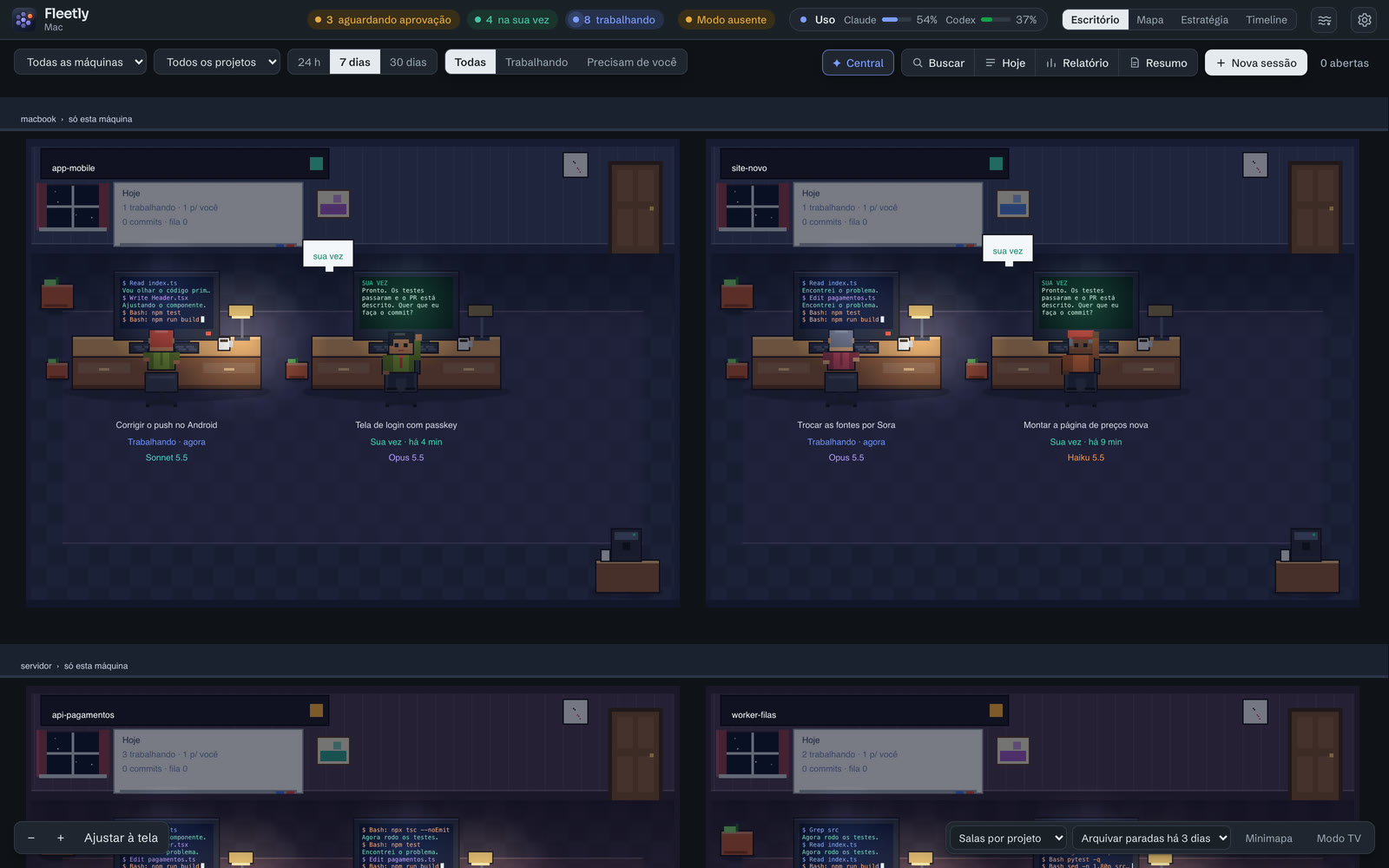
| At the desk | Means |
|---|---|
| Typing, lamp on | Working. The monitor shows what it is doing: commands, bits of the answer, the image it read or a mini-diff of the last edit. |
| Hand up with "!" | Waiting for approval. Click the bubble to approve right there, when the request is in the dashboard. |
| Turns and waves | Your turn. Click the bubble to answer in the scene itself. |
| Napping | Idle. After a long while, it walks to the coffee machine. |
- Project list: click the room’s sign, or the project name in a session’s header, to see all the project’s sessions with a summary of each. The filter looks at the name, summary and tags and, with 3 letters or more, the chat text too, showing how many matches each session has.
- Arrange: drag desks and signs to reorder. Desks idle for more than 1, 3 or 7 days go to the room’s archive, and, in a room with more than 12 conversations, so do the least recent ones (new ones always stay in view, and no desk moves); click the archive to bring them back.
- Drop text: drop text on a desk to queue it there, or on the room’s door to start a session in that project.
- Group rooms by project or by tag.
- Look: front view (the default) or illustrated front view. Compact desks fits about 3 times as many desks on screen.
- Minimap takes you to any room, and TV mode goes full screen, touring the rooms with activity.
- Light stops everything that moves: rooms only change when a session changes state. Good for keeping the panel open all day on a laptop.
- Click a floor’s name to see only that machine. A machine that is off shows as offline, with the time it was last seen.
Scene details: the accessory shows the model (tie: Opus; glasses: Sonnet; cap: Haiku), the interns are subagents, plants grow with the week’s commits, the whiteboard sums up the room’s day and paper planes fly when one session messages another.
Map
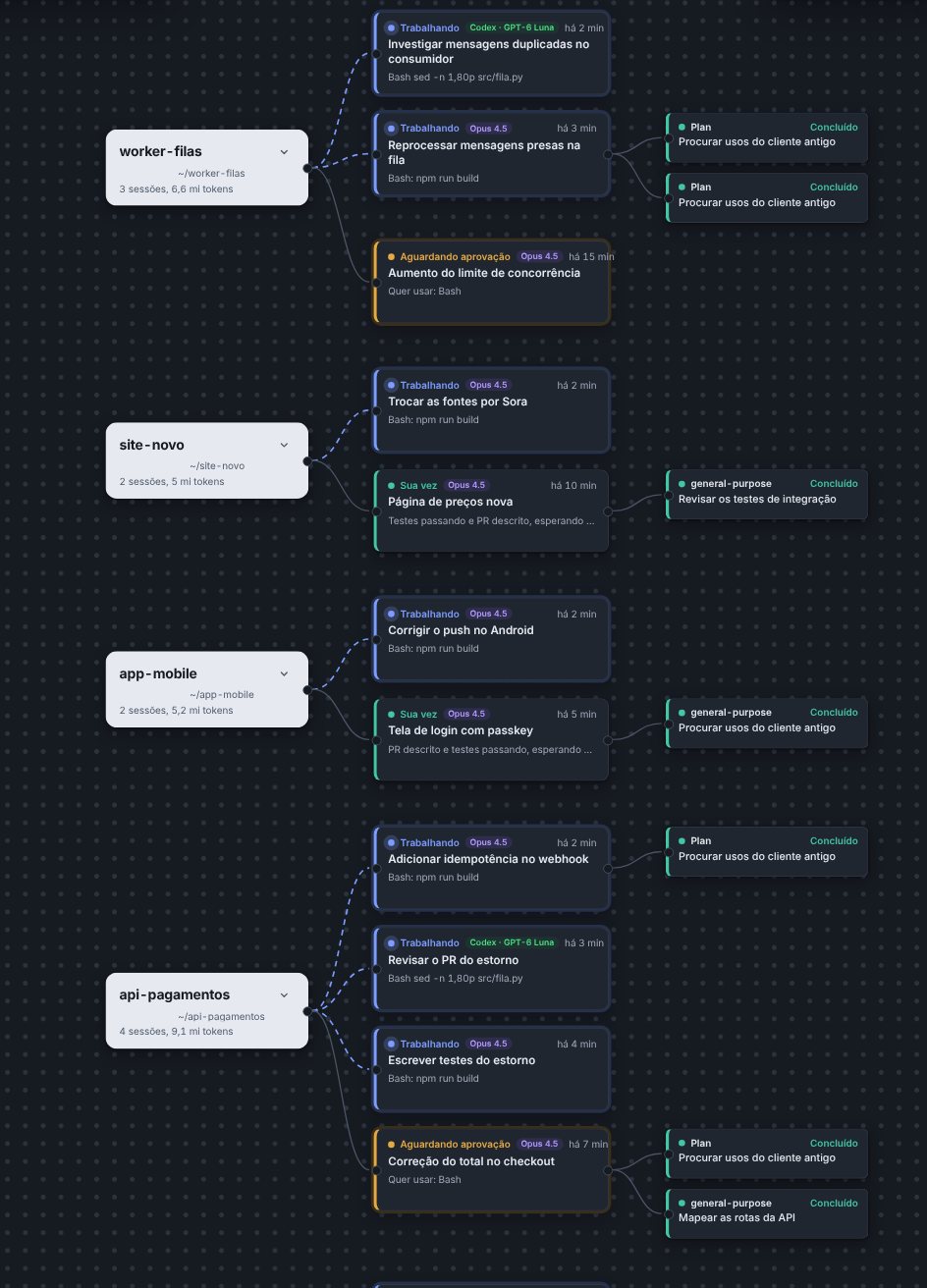
Projects and sessions as a diagram. Drag to move, pinch or ⌘ + scroll to zoom, and F to fit the screen. The arrow on a project card collapses its sessions.
Strategy
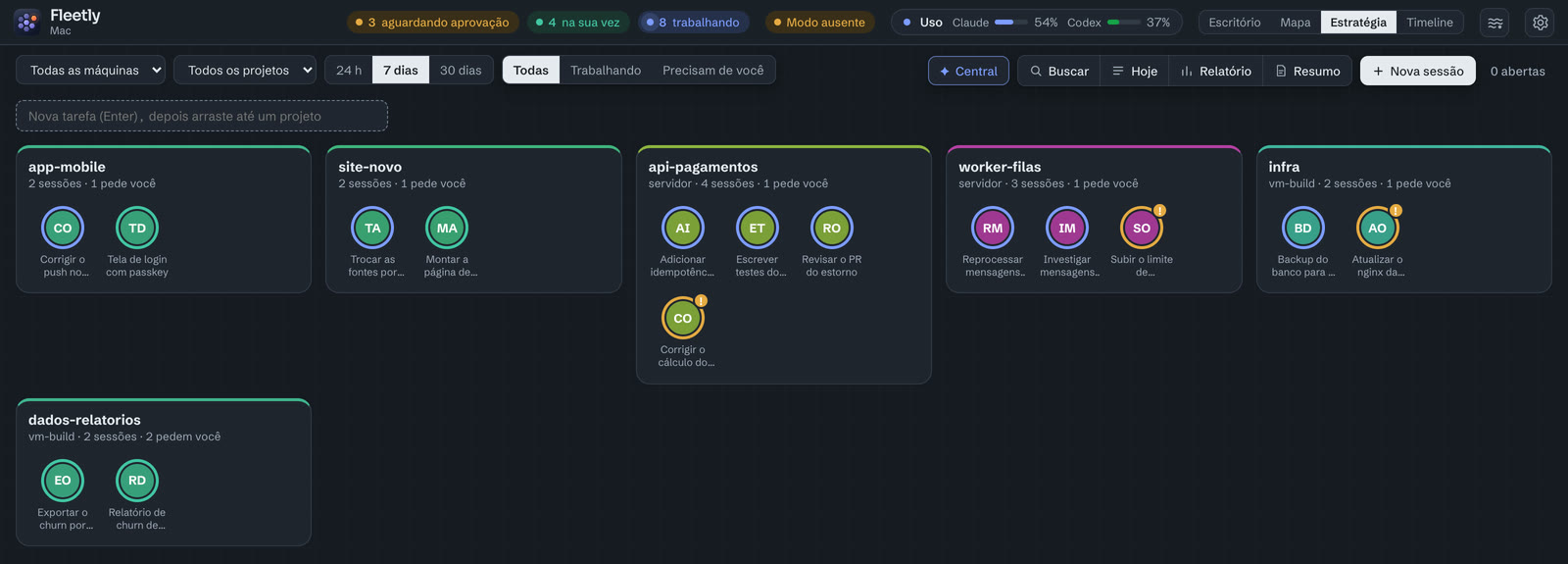
For commanding many sessions at once. Each project is a region and each session is a unit, with a ring in the state’s color, a "!" when it asks for something and the number of subagents running.
- Select: drag a box on the background;
⇧adds; double-clicking a project name picks all its units;Ctrl/⌘+Apicks them all. On a phone, tapping adds. - Orders: Continue (
G), Approve (A), Run tests (T), Commit (C), Message (M) and Stop (S). Each button shows how many sessions the order applies to, and before sending a message the dashboard shows how many will get it. - Groups:
Ctrl/⌘+1to9saves the selection; the number alone brings it back. - Tasks: write a task in the top field and drag it onto a project to start a session there.
Bulk messages only go to sessions that can take them now: closed, with no answer in progress and not waiting for approval.
Timeline
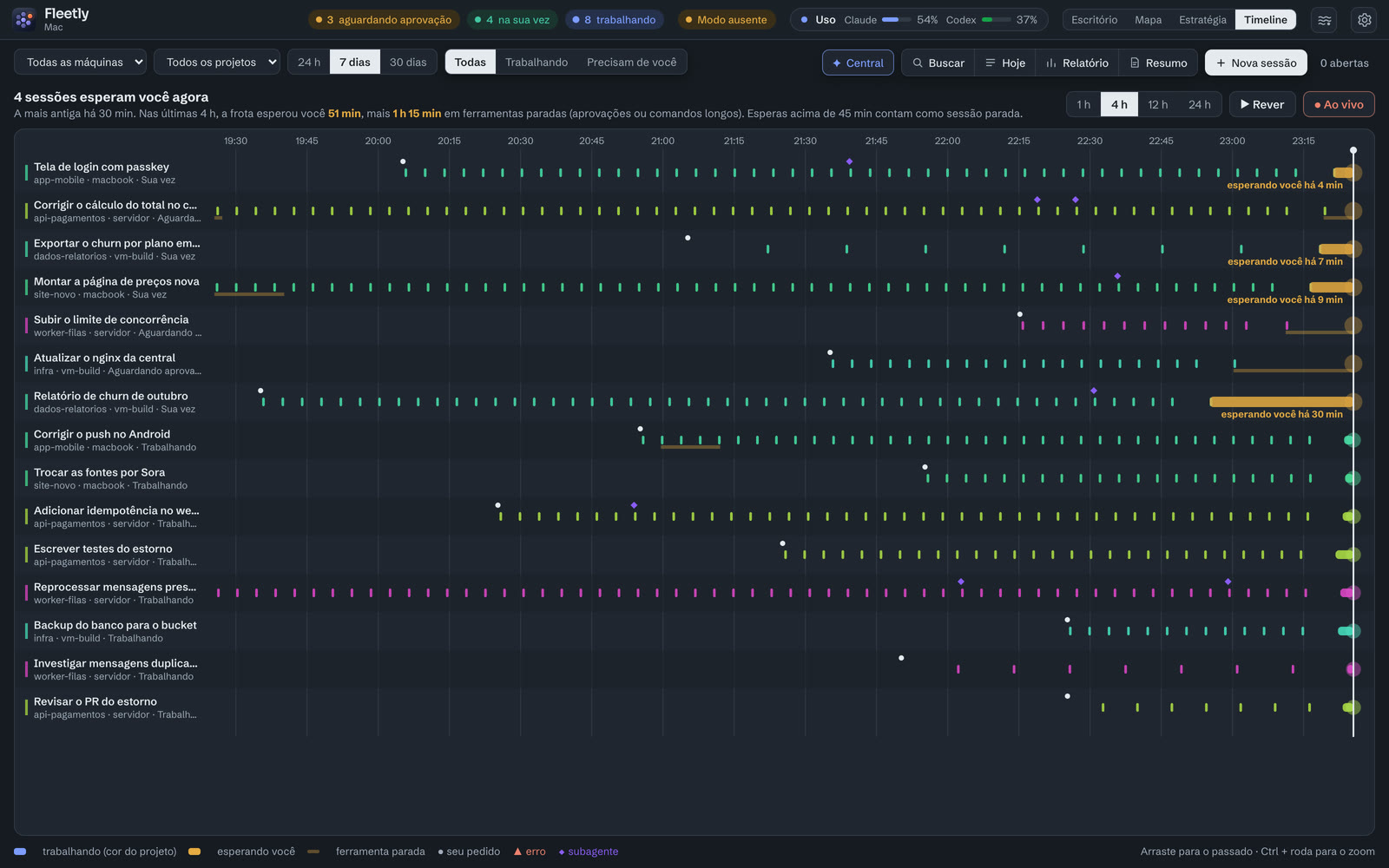
One lane per session, with time moving: now is on the right edge. It shows where you were the bottleneck.
- Bar in the project’s color: working. Solid amber: the answer was ready and it was your turn. Thin amber: a tool waiting (approval or a long command).
- Pick 1, 4, 12 or 24 hours; drag into the past,
Ctrl+ wheel to zoom and Live to come back. Replay plays the period in about 40 seconds. - At the top: how many sessions are waiting for you now and how long the fleet waited for you in the period.
Ambient

The fleet in motion, with no text, for a second monitor or the TV. Each session is a stream of light that flows while the agent works; when it needs you, it pools and pulses (amber asks for approval, green is your turn).
- Open it with the waves button in the top bar, next to the views. Open in another window moves it to another monitor; in Chrome and Edge, Floating window stays on top of any app.
- Tap the pulse to act: with the request in the dashboard, you can approve right there.
Nshows the session names, and the screen stays on while ambient is open.
Board
Teams on the Board: your teams show up in their own section, above the projects, each with its last round and every seat’s state. Tapping a team opens its board (all seats, what’s moving, what needs you, the log, notes just for the team and the seats’ combined week); tapping a seat shows that role’s session, its week and what it last delivered, with a shortcut to open it in the dashboard. Below the teams come the Projects: each card is a repository, with all its sessions, on a team or not.
All your projects on a handwritten whiteboard, live, over the whole screen; open in another window moves it to a second monitor or the TV. Each project shows where it comes from (machine, folder and building), its stage (Idea, Building, Testing, Live), what was done, what the agents are doing now, what is waiting for you, the last deploy and the week’s commits.
- Open it with the Board button in the top bar, or by clicking the whiteboard on a room’s wall in the Office (it opens on that project). On the people’s floor of the new Office, the ▦ on your room’s sign opens the Board with all your projects. On the phone, the button is in the bottom bar. With the tag filter on, it opens on the tag board, which gathers that tag’s sessions from every project and machine; the tags are also at the top of the board.
- A project is a repository: the same git folder on another machine (the same
origin) shows up on the same card, with the agents split by machine. - Tap a project to see it on the whole board: Where it stands, Now, Needs you, Done this week, Next steps (the messages queued in the sessions) and The week. Tap an item to open the session in the dashboard;
Escgoes back. - The stage is suggested from what the project did (a deploy in the last month: Live). Tap a point on the trail to choose; tap it again to go back to the suggestion.
- Project summary: when a session finishes a step, Claude (the cheapest model) reads the recent conversations and writes where the project stands, the next steps and what was decided. At most every 30 minutes per project, and only with room left in the usage window; rewrite asks for a new one. It turns off along with automatic names, in Settings.
- Project tags: in the project list (click the room’s sign), the tags its sessions get, new ones included, when they have no tags of their own. That way the tag board doesn’t miss sessions started later.
- Your notes: ideas and reminders on sticky notes, on the main board, a project or a tag. Only you see them, and Fleetly never erases what you write. A reminder with a time reaches your phone; an idea goes to an agent with send to an agent (a new session with the text) or becomes a scheduled task with make it a routine (the project’s routine form, already filled in).
- A project note can go to the building, one at a time: show to … lets the people in the building see it on that project’s board, with your name; just for me takes it back. Only you can erase yours.
Plan
A sheet of paper, in the Board’s handwriting, to plan the week’s or the sprint’s tasks: one column per project, one task per line (bug, fix, tweak, feature or other). A task goes to an agent in one click and comes back on its own when the session finishes; you’re the one who crosses it off.
- Open it with the Plan button in the top bar or in the Board’s bar; open in another window moves the sheet to a second monitor. On the phone, open
/plano. The − 100% + in the bar zooms only the sheet in or out (50% to 200%, kept on this device); so do a trackpad pinch, two fingers on the phone and ⌘/Ctrl +=,-and0. - + Project, at the end of the sheet, adds a column for a project from the Board (the same repository on two machines is one project) or a Free column with the name you give it ("Week 45", "Sprint 12"). Tapping the dot next to the title changes the color; the column’s ⋯ menu has Change color, Rename (free columns only), Move left / right, Hide done and Remove from the sheet (only with no open tasks). On a computer you can also drag the column’s title.
- Write on the blank line at the end of the column and press
Enter: the task is added and the next line is ready. The mark before the text is the type; tap it to change. Drag a task to reorder it or move it to another column (on the phone, Move to… in the details). - Tapping the text opens the details: the title, the description (sent to the agent with the title), Send to an agent (tasks with a project, with the project’s machine on), Open session, Complete / Reopen, Show to … / Just for me and Delete.
- The status shows on the line: the little robot is with an agent; your turn in red means the session finished and is waiting for your review. If the session is deleted, the task goes back to to do with a note. Ticking the box crosses the task off and moves it to the end of the column; tasks done more than a week ago are collapsed.
- At the top and on each column, the period’s numbers: open, done and waiting for you, plus how many of each type (the whole project’s are in the project’s Tasks section). The bar’s filters show a single type or status, and Mine / From the building hide or show the tasks teammates shared with the building (with the creator’s name; only the creator can change them).
- Only you see your tasks, unless you show one to the building. When all your buildings are read-only, the Plan is read-only too: you can see the tasks and open the sessions, but not change them.
The Plan has two views, at the top: Periods (your own planning, across all projects) and Project (how each project is organized: sprints, periods or lists). Both show the same tasks.
Periods: each period is a sheet of its own, with its columns and tasks: a week, two weeks, a month, however you work. The bar below the title shows the period (name, dates and how many days) with ‹ › to move to the others; past periods are kept as they were.
- + Next period suggests the name (the number at the end of the name + 1: after "Week 45", "Week 46") and the dates: it starts the day after the last one ends, with the same length. Change whatever you want: if you work in 10- or 30-day periods, type the dates once and the next ones come that way. The new period brings the same columns, and you choose what to do with the open tasks: Bring them all, Choose which, or Leave them in the previous period.
- Tapping the period’s name changes the name and the dates (Starts and Ends); Delete period only shows when the period is empty.
- In an open task’s details, Move to period… takes it to another period, into the same project’s column (added if missing). A task that belongs to one of the project’s sprints, periods or lists shows its name below the title.
- The first time you open the Plan after this change, the sheet you already had becomes today’s period (the week, Monday to Sunday), with nothing lost.
Project: pick the project at the top. A project not in the list yet (no agent has worked in it) comes in through Another project, at the end of the list: Choose a folder… on any machine that is on, or Create a new project…, which creates the folder (with git init, if you want). The first time, the Plan asks How is this project organized? (you can change it later in Organized in):
- Sprints, for clear goals and planning: each sprint has dates (the first suggests 14 days; the next ones, the previous length) and an optional Goal, shows how many days are left and how many tasks are done, and at the end Close sprint… sends the open tasks to the backlog or to another sprint (or Create the next sprint with them).
- Periods, if you work in blocks of time without a goal: suggested dates (7 days, then the previous length), and Next period, in the ⋯ menu, creates the next one with the open tasks and closes the current one.
- Lists, for a big project or one still taking shape: just a name, no dates ("Ideas", "Phase 1", "v2").
- The Backlog holds what belongs to the project and isn’t in any sprint, period or list yet. Write on each column’s blank line, or drag a task from one column to another (on the phone, Move to… in the details). You can mix: a sprint project can have an "Ideas" list, and Edit changes the type.
- In the details, Pull into {period} takes the task into your current period, in the project’s column, without taking it out of the sprint; the period’s mark shows below the title.
- Summarize, in a sprint’s, period’s or list’s ⋯ menu: the chosen agent summarizes according to the type (progress toward the goal and, at the end, the sprint review; what got done and what moves to the next period; the list’s next steps), with suggested tasks that go into it when you accept them.
- Show to {building} lets your building’s teammates see the sprint, period or list and its tasks, without changing anything. Edit together with {building} makes it a team sheet: teammates can also put their own tasks in it, take them out, drag them and complete them, and run it with you (change the name, dates and goal, close it and create the next one, which stays shared). Showing, hiding and deleting stay with whoever created it (Only I edit goes back to just showing).
- Plan the project, at the top of the Project view: the chosen agent reads the backlog, each sprint, period and list, what the agents and teams did in the project, and writes where each part stands and the next steps, with suggested tasks; in Accept into, choose whether each one goes to the backlog or into a group.
- Numbers, at the top of the Project view: the tasks done in the last 30 days and how long, on average, they spent with the agent and waiting for you, in total and by type. The averages only use tasks with measured time (those that went to an agent or a team since measuring started); the Plan says how many. In sprints and periods, a small bar shows tasks done per day. It is per project only, never per person.
Ask the agent, at the top of the Project view (or Ask the agent… in the project column’s ⋯ menu, in the Periods view): the chosen agent reads the project’s code, in Plan only mode (it reads, changes nothing), and returns tasks. Two options:
- Plan a feature: describe the feature (what the person does, what changes on screen, what is left out). The agent answers with the plan (what changes and in which files, the risks, how to test) and the feature broken into tasks, in the order to do them, each saying what it depends on and whether it can be done in parallel.
- Look at the code: the agent looks for what needs attention (TODOs, missing or failing tests, likely bugs, fragile parts, old dependencies) and suggests tasks.
- The request opens a session in the project, named Plan: … (or Look at the code), which shows up in the dashboard: Open the conversation shows what the agent read, and you can continue ("split task 3", "don’t touch the API"); the Plan rereads the new answer and tasks already accepted or discarded stay as they were. Your phone is notified when the plan is ready.
- Accept all into a new list puts the tasks, in order, into a project list named after the feature (later accepted ones go into it too); or accept them one by one, into the backlog or a group. Remove takes the request off the Plan (the conversation stays in the dashboard). Reading the code uses much more of the agent’s limit than a summary.
Send to a team: in a to-do task’s details, Send to a team… starts a round of the chosen team with the task as the request (only teams you run are listed). The task shows the little robot while the round runs and comes back as your turn when it ends, with the report’s verdict (ready, attention, stopped) below the title; Open the team shows the round and the report. If the team is in a round, the task joins the team’s queue and starts on its own when the team is free, in the order they joined: the task shows its place ("#2 in the team’s queue"), Move up in the queue and Move down in the queue swap it with the neighboring one (if that one is yours), and Take it out of the team’s queue gives up. The Plan’s summary also reads each project’s team rounds: the request, the verdict and what the report flagged to check.
Notifications: when your last period ends, the Plan shows a notice with + Next period, and your phone gets one notification (8am to 8pm, in your browser’s time zone, which the Plan keeps; before you open the Plan, in the Morning brief’s or Weekly retro’s time zone). In Plan, Summarize on its own at the start of each period makes the period’s summary come out by itself on its first day, with the chosen agent, and you are notified when it is ready (it uses a little of that agent’s limit). The same for a project sprint or period that went past its end without being closed. Your phone is also notified when a summary is ready and when a task reaches your turn (in place of the session’s notification, with the task’s name).
Outside the Plan: in each project’s list in the dashboard, the Tasks section shows the open ones, those done this week and those waiting for you, with Open in the Plan. On the Board, the project card shows how many open tasks it has, and the detail has Open in the Plan.
The week or the sprint across projects: in a free column ("Week 45", "Sprint 12"), each task can have a project: pick it in project, below the blank line, or in the task’s details. A task with a project shows its name and goes to an agent right from there. Dragging a task into a free column keeps its project.
Summarize to plan: an agent on your machine reads the tasks and what the agents did, and writes what got done, what is waiting for you and what is pending, with suggested tasks.
- Plan the period, in the Plan’s bar (the button carries its name, like Plan Week 46; or Plan here, in a free column’s ⋯ menu): the period on screen, with the Focus in priority order, mixing projects. The agent sees the period’s tasks, the open ones outside it and how each project is organized, and suggests what to pull in: what is left for the goal of the running sprints, the open tasks of the projects’ current periods and, from the lists, whatever makes sense now. Each period keeps its own summary. Pick Who summarizes and tap Summarize. With the sheet still without a project, the agent looks at the projects your agents worked on during the period, the most active first.
- Summarize project, in a project column’s ⋯ menu: just that project, with the next steps, in a card at the top of the column (Collapse hides it).
- Who summarizes: the agent you use (Claude Code, Codex, GitHub Copilot or Antigravity), or Automatic, the first one the machine has. If the chosen one isn’t on the machine, another one does it, and the card says which one summarized and on which machine. The summary runs without tools, doesn’t touch the code and doesn’t show up in the sessions; it uses a little of that agent’s limit.
- Each suggested task has Accept (it goes into the project’s column, which is added to the sheet if missing, or into the free column picked in Accept into, with its project; in a period’s summary, the project’s column in that period; in a project sprint’s, period’s or list’s, that one) and Discard. Nothing goes on the sheet until you accept it, and the summary doesn’t suggest what is already on the Plan.
- The summary stays until you ask again (Summarize again) and keeps being written with the Plan closed.
Bring from outside: in the Project view, Bring from outside fetches open tasks from GitHub (through the gh already signed in on one of your machines; the central keeps no GitHub token), Linear (with a personal API key) or Jira (with the address, email and an API token). Pick which come in and where (backlog or a group). The task shows the number or key from there, which opens the original. When you finish it in Fleetly, Fleetly comments there; check When done here, close it there to also close the issue (or move it to done). Update from there brings back the title, the description and whether it was closed. Keys are stored encrypted and used only for your tasks.
Didn’t find what you were looking for? Write to admin@fleetly.tools.