
Getting started
Fleetly shows the Claude Code, Codex, Antigravity and GitHub Copilot sessions of all your machines in one dashboard. A small program, the collector, runs on each machine and talks to the Fleetly hub (ai.fleetly.tools) over an outbound connection. The agents keep running on your machines, with your account.
Create your account
- Open
ai.fleetly.toolsand choose Create account. - Sign in with a passkey (Face ID, Touch ID, Windows Hello or a security key) or with your Google, Microsoft or Apple account. With a passkey (and also when accepting an invite), enter your email: Bit’s welcome arrives there with a link to confirm it (valid for 7 days). Once confirmed, it’s used to recover your account. If you signed in with Google, Microsoft or Apple, your email is already confirmed, and you can add a passkey later in Settings → Account.
- You get an empty building and a 14-day free trial, no card required.
If your company turned on SSO in Fleetly, type your work email on the sign-in page and you go through your company’s login.
The first time you open it
Before you connect anything, Fleetly asks What do you work with? (Sales and consulting, Marketing and content, Legal, Management and operations, I build software, or Something else). The answer picks the examples and, for people who don’t build software, hides the developer features. To change it: Settings → Account → Your field.
With no computer connected, the dashboard opens on What do you want the agents to do?. Type or say your request your way and tap Start: the request is saved and, as soon as the computer connects, Fleetly puts together who does it and you review it before it starts.
See how it works: each example from your field is told in 4 steps (the request, who does it, the progress and the delivery), with Approve and Redo to try out. Nothing actually runs. See the full sample dashboard opens the demo with sessions and a team.
Connect my computer explains what you need: the Fleetly app on the computer and a subscription to one of the agents (Claude, ChatGPT with Codex, Gemini with Antigravity or GitHub Copilot). The app installs whatever is missing, and the screen changes on its own when the computer connects. For servers and VMs, I’m a developer or use a server leads to the usual options.
Developer features: outside software, the dashboard starts without Map, Strategy, Timeline, Ambient, Filters, Command center, Plan and the Code tab, and Teams open on Deliveries. In Settings → Account → Developer features, choose By my field, Show or Hide (applies to this device).
How the dashboard is organized
| In the dashboard | What it is |
|---|---|
| Building | An organization: the machines and people of a team or a client. Each person sees only the buildings they belong to. |
| Floor | A connected machine: your Mac, a server, a VM. |
| Room | A project (the folder where the agent works). |
| Agent at a desk | A Claude Code, Codex, Antigravity or GitHub Copilot session, open in the terminal, in VS Code or started from the dashboard. |
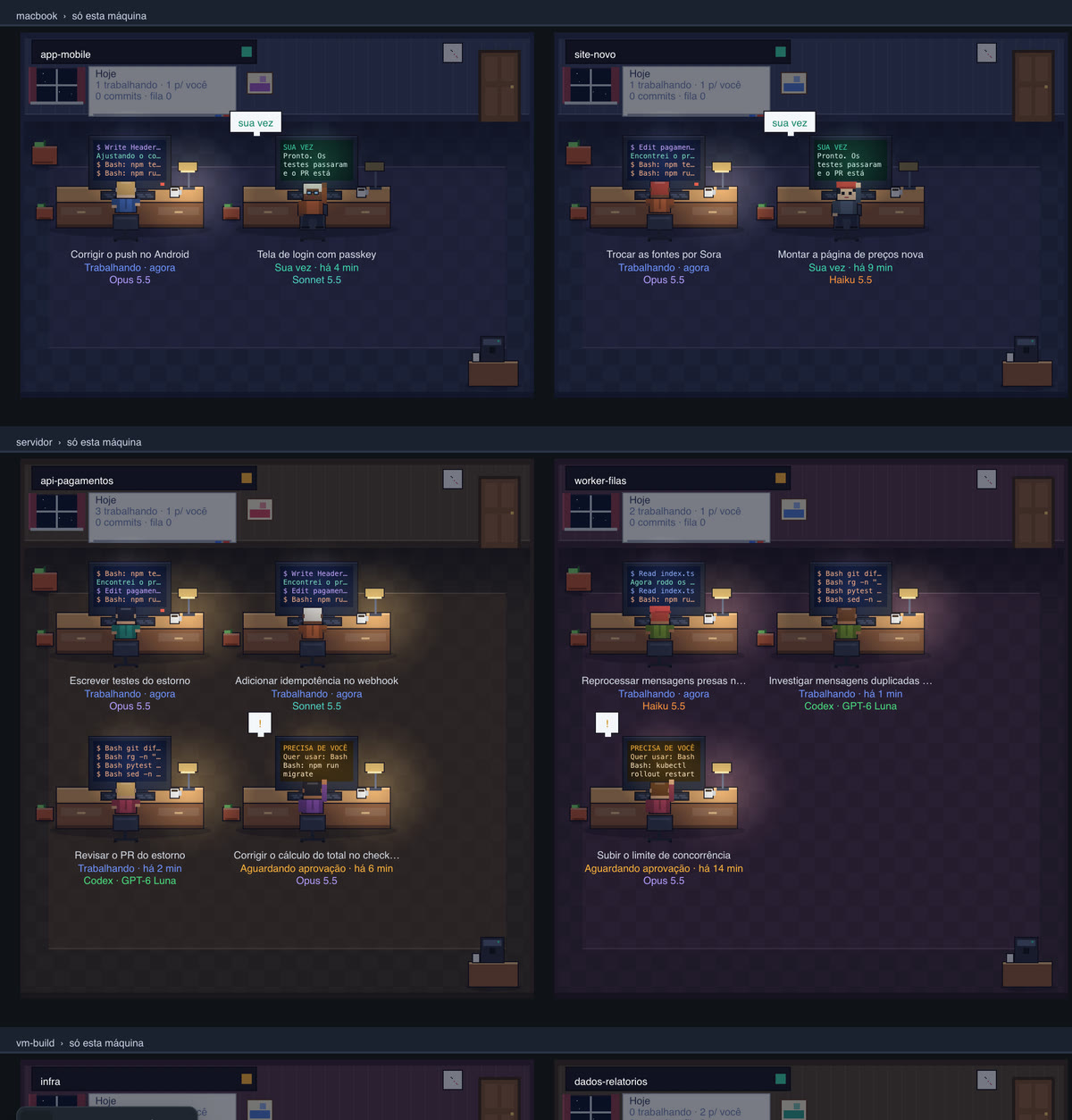
Each session’s state shows as a color: working, waiting for approval, your turn (the agent answered and is waiting for you) or idle. In Filters, in the top bar, show only who is working or only who needs you. A session waiting for approval that you won’t answer (forgotten, or an example) leaves the top bar count with Dismiss, next to the state in the conversation, until the session changes; Dismissed undoes it. It applies to your account, on every device, and it also leaves the phone widget and lock screen.
Connect your first machine
Still evaluating? On the home screen, See how it works tells an example from your field in 4 steps, and See the full sample dashboard opens the dashboard with sample sessions and an agent team mid-run, without installing anything. In the demo, nothing is sent or saved; Connect my computer leaves it and shows what to do.
The simplest way: with no computer connected, the home screen has Connect my computer. It shows the button to download the app for your system, explains that you need a subscription to one of the agents (Claude, ChatGPT with Codex, Gemini with Antigravity or GitHub Copilot) and waits for the computer to show up, on its own. The same path is in the guide, under Connect your computer. Through Settings, the steps are:
- In Settings → Buildings → Machines → Add machine → With a command, give the machine a name and tap Generate command.
- Download the Fleetly app for the machine’s system (Mac, Windows x64 or Windows ARM), install it and open it. Click Entrar com a sua conta (sign in with your account; the app is in Portuguese for now): your browser opens Fleetly. Check that the code matches the app, choose the name and the building and click Connect. The app finishes on its own, with no token, terminal or Node. (If you prefer, copy the token with Copy token and paste it under Tenho um token.) In the window that opens next, Agentes neste computador (agents on this computer) shows Claude Code, Codex, Antigravity and git: whatever is missing has Instalar (install), and each one says how to sign in.
- On a Linux server, or if you prefer the terminal: click Use the command, copy it and run it on the machine, as your own user (the one signed in to Claude Code, Codex, Antigravity or GitHub Copilot).
- Within seconds the machine shows up as a floor, with the sessions already running.
The step by step for Mac, Windows, Linux and VMs is in Connect machines.
Set up an agent: if the computer connected but has no agent ready yet, the panel shows a card for each one (Claude Code, Codex, Antigravity, GitHub Copilot). Install installs it on the computer and Sign in on this computer opens the sign-in in its browser, which returns by itself, no terminal. It works for all four: Antigravity signs in with your Google account (if the page shows a code, paste it in the card; on Windows, an Antigravity window opens on the computer: press Enter on Google OAuth and paste the code there); Copilot, with your GitHub account. Away from the computer, I’m away from the computer signs in with a code, from your phone (on Windows, Claude and Antigravity sign in only on the computer itself). To set up another agent later, use Set up another agent on the home screen or Set up another agent… in the agent choice of New conversation.
The guide inside the dashboard
In the top corner, your menu (your initials) brings together Getting started, Settings, Videos and help, the docs, the 1-minute tour, what’s new and Sign out. While the guide isn’t finished, a ring around it shows how much is left.
Quick tips: in the bottom-left corner of the panel, one tip at a time with what isn’t obvious from the screen: when to use a chat or a team, how to schedule an agent, shortcuts and everyday features. › shows the next one, Learn more opens the docs page, and each time you open the panel a new one shows. × hides the tips in this browser; Settings → Chat → Quick tips (or Show quick tips, in your menu) brings them back. On phones, they sit at the top, below the filters. Without the developer features, the tips are about asking, deliveries and the phone. Next to the tip sits Bit, the central’s little robot: tap it to open First steps, and it lights up when requests are waiting for you.
- Getting started: connect your computer, ask for the first job, turn on phone notifications and approve the first delivery. Fleetly notices on its own when each step happens; nobody has to tick anything.
- Show me how: each step has a short video, with no sound and with captions. Tap the video to see it larger.
- Go further: after the basics, approve permissions through Fleetly, build a team of agents, schedule a routine, use the Board and turn on the weekly retro (and, for developers, the other views), each with its own video.
- 1-minute tour: six steps showing where everything is, from your menu. Without the developer features, it’s four: where to ask, who needs you, the deliveries and your menu.
- Videos and help: every short video in one place, from the full demo (3 minutes, from the first agent to the team that publishes on its own) to one per feature. On screens that have a video (Report, Usage, Board, Command center, Files, Routines and Roles), the ▶ next to the title opens that one.
- Owners of a Team building also get Your team (invite, folders per machine, blocks); on Enterprise, Company setup too (SSO, SCIM, policy, hooks, budget, reports, access review and auditor). Readers and auditors get a short track of what they can see.
Your progress is saved to your account, so it works on your computer and your phone. Don’t show again hides the ring on the menu; the steps stay under Getting started.
Fleetly’s words
| Word | What it is |
|---|---|
| Building | Your space in Fleetly: the machines, the people and the rules. Each connected machine is a floor; in a company, the building belongs to the team. |
| Machine | A computer running the Fleetly collector (the app on Mac or Windows, or the command on a server), where the agents run. |
| Session | A conversation with an agent, Claude Code, Codex, Antigravity or GitHub Copilot, open in the terminal, in VS Code or from the dashboard. In the Office, each session is a desk. |
| Room | In the Office, the sessions of one project (or one tag, or one team) together. |
| Role | Who an agent is: Claude, Codex, Antigravity or Copilot, the model, the prompt and what’s off-limits. The same role works for many teams. |
| Team | A team of agents: seats with roles, connected by arrows, that pass the work along on their own. |
| Seat | A spot on a team, with a role. It can be yours or someone else’s, on their machine. |
| Round | One pass of the team: from the request until the last seat finishes. At the end, you approve what goes into the code. |
| Routine | A task that runs on its own on a schedule, in a new session, even with the dashboard closed. |
| Board | Every project on a whiteboard: where each one is and what’s waiting for you. |
What to do next
- On a laptop with personal stuff, choose the folders the building sees.
- Turn on notifications in Settings → Notifications and approvals and approve requests from your phone.
- Chat with a session: click it and use the Chat tab. To continue on your phone a session that is open in VS Code, use Take over in Fleetly. See Chatting with sessions.
- Get to know the views: office, map, strategy, timeline and ambient.
Didn’t find what you were looking for? Write to admin@fleetly.tools.