
Chatting with sessions
Click a session and use the Chat tab. What happens to your message depends on where the session is: closed, driven by Fleetly, or open in VS Code or the terminal.
Closed session, or driven by Fleetly
When the session isn’t open anywhere, Fleetly resumes it on the same machine, with the same history, and the answer streams in as it is written. It’s what you would do in the terminal with claude --resume.
- What you ask counts as yours, as if you had typed it in the terminal.
- Permission requests reach the dashboard and your phone for you to approve. With no answer in 15 minutes, the request is denied.
- In the + to the left of the message box, choose what the agent may do (Auto, Ask for approval, Can edit files or Plan only) and the model. The modes are in Approvals.
- Closing the browser tab doesn’t stop the answer. To stop it, use Stop.
- The chat is saved in the session: afterwards it carries on normally in VS Code or the terminal.
Session open in VS Code or the terminal
The agent is running there, and Fleetly doesn’t speak for it. A message you send from here reaches the session as a note from the dashboard, and the agent decides what to do with it. It doesn’t count as a request from you, and that session’s permission requests keep showing up in VS Code (or in the dashboard and on your phone, depending on the mode in Approvals).
With the Fleetly bridge installed in VS Code, this changes: the message enters the session through the same path as the tab and counts as yours, same as typing there (the agent accepts requests like deploy and commit, and the VS Code tab shows the conversation). The hint below the message box says when the bridge is on. It is not an extension: the collector writes the official claudeCode.claudeProcessWrapper option into VS Code’s settings.json, pointing at a Fleetly wrapper that passes the conversation through to Claude and accepts the dashboard’s messages. To turn it on: in Settings → Chat → Sessions open in VS Code, check Send messages as if I typed them in the VS Code tab. Or through the collector: fleetly-collector vscode (the question also appears in fleetly-collector hooks, and the Fleetly app asks it on first launch). It applies to sessions opened from then on: close and reopen the ones already open. To turn it off: fleetly-collector vscode desligar. On Windows, only through the Fleetly app (VS Code requires an executable as the wrapper).
With the bridge, that session’s permission requests show up in VS Code and in Fleetly at the same time (dashboard, app menu and phone), and the first answer wins: approving in Fleetly closes the dialog in the tab, and answering in the tab removes the request from Fleetly. It also works with remote VS Code (SSH): turn the bridge on in the remote machine’s collector with fleetly-collector vscode. In Only on the computer mode, requests stay in VS Code only; a request with a building rule (double approval, always ask) waits for the decision in the dashboard. A tab opened before this version of the bridge keeps the old one, and the dashboard tells you: close and reopen the session in VS Code for requests to reach Fleetly. The agent’s questions with options also show up in both places, with the bridge from Oct 30 on.
To drive the session through Fleetly as yours, there are three ways. Tap the short label below the message box (for example ↗ In VS Code, as yours ?): it opens the explanation and the buttons:
| Button | What it does | When to use it |
|---|---|---|
| Take over in Fleetly | Closes the session in VS Code or the terminal (the chat stays saved) and drives it through Fleetly from then on. What you ask counts as yours, and permissions reach the dashboard and your phone. | You left the computer and want to keep working from your phone. |
| Send as me | Closes the session in VS Code and sends the message you wrote as your request (permissions reach the dashboard and your phone). To continue in VS Code afterwards, close the old tab, which shows a process-exited notice, and open the session again from the Claude sessions list. | You are away from the computer and need the session to do something it only does at your request, like a deploy. |
| Continue in the Claude app | Opens the same session in the Claude app or at claude.ai/code, through Anthropic’s Remote Control, without closing it in VS Code. | You want to carry on in the Claude app and keep the session open on the computer. |
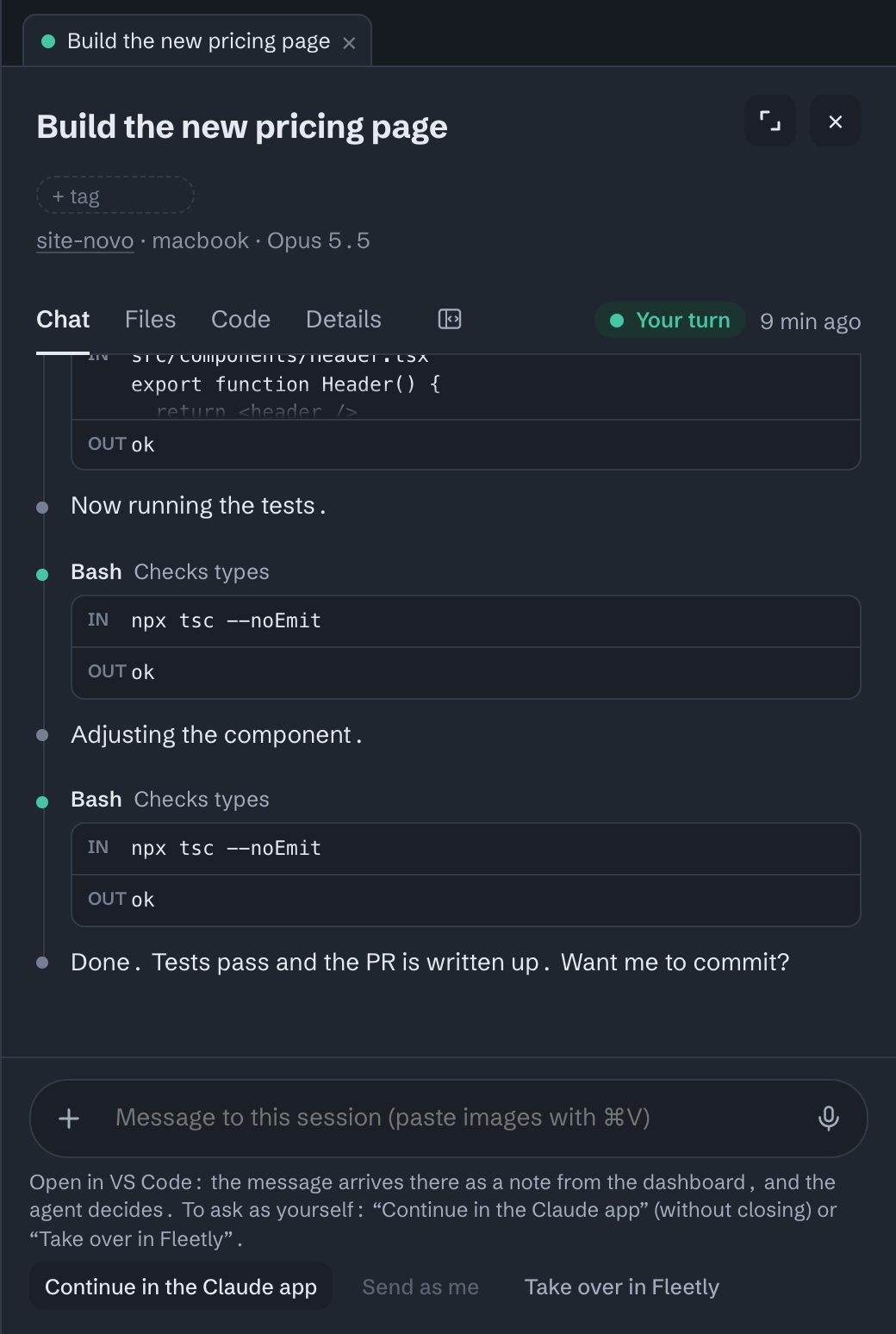
After taking over, you can reopen the session in VS Code when you are back at the computer: the whole history is there.
Continue in the Claude app only shows up when Remote Control is on for the session. Turn it on with /rc inside the session, or for all of them in /config → "Enable Remote Control for all sessions". Without it, the button becomes How to drive it without closing, with these steps. Fleetly doesn’t send messages through Remote Control: it only takes you there.
Codex open in VS Code. With a Codex conversation open in the VS Code extension, a message you send from Fleetly goes into it as if you had typed it there, with your name in front. Codex answers in VS Code, and the answer shows up in Fleetly too. With VS Code closed, Fleetly opens the conversation itself.
The message goes through Codex’s official queue (codex queue, from version 0.164): if the conversation is answering, it waits its turn. To know whether VS Code has the conversation open, Fleetly uses a channel in the extension that OpenAI does not document. If an update changes it, Fleetly tells you the message could not be delivered: answer in VS Code meanwhile.
Session working somewhere else
- If the session is answering in a terminal Fleetly can’t reach, the message box stays locked until it finishes. Use the queue.
- If it seems to be waiting for an approval in a terminal, answer there, so two agents don’t end up in the same chat.
Chat tabs
On the computer, each session you open stays in a tab, like in VS Code, so you can switch between chats without losing your place. With the Working filter, Open in tabs opens a tab for each session that is working. Past 10 tabs, the oldest one that doesn’t need you closes on its own. To change the order, drag the tab (or, with it focused, use Alt + ← / →).
A chat’s automatic name changes as it goes, and with several open it’s easy to lose track. The Today button, at the start of the tab strip (or the h key), lists the day’s chats ordered by the time of your last request: each row shows the time, the state, the project, what you last asked in quotes and the current name below. Yesterday stays collapsed at the end, and at the bottom of the list you choose the period of the chats shown (24 h, 7 days or 30 days), on the phone too. Picking a row opens the chat in its tab. With the session expanded, Today becomes a column on the right that collapses into a narrow strip; on the phone, it opens full screen.
At the top of Today is Waiting for you, with what needs your decision: permission requests, outbox sends, plans and questions; sessions that finished after changing project files since your last request (Ready for you to review, which opens the delivery card); and your teams’ rounds ready to publish. The number on the Today button turns green when something is waiting. Below it, Time and Project choose whether the day’s requests (and yesterday’s) are listed by time or grouped by project. In Project, each project shows how many conversations are working, waiting or on your turn, and collapses with a click on its name (the arrow next to the filter collapses or expands them all). When your last request is short, like “ok”, the row shows the conversation’s name instead. Conversations in the system’s temporary folders (tests an agent runs in its own scratch space) stay out of Waiting for you and send no notifications. Approving on the card removes the session from the list, and so does the ×, until it has something new. Team seats are left out: there, the round report decides.
Queue
Write the request and use + → Add to queue (or ⌥↵, Alt+Enter). While a reply is in progress, the button to the right of the box already becomes the queue button. It is sent when the session finishes what it is doing, even with the dashboard closed, with the mode and model you chose. Queued items show up above the message box: you can move them up, down or out of the queue.
Reminders: in the session’s Details tab, under Reminders, pick When done, notify me, Notify me if not done by… (a time) or When done, send… (a text that goes to the session as if from you, once). The central checks on its own, even with the panel closed, and the notice arrives on your phone. If the session finishes before the time, the time reminder goes away without notifying.
Check when done: in the project, under Check when done, add up to 3 commands (one per line, e.g. npm test). When an agent finishes after changing files in the project, the machine runs the commands one after another, and the result (passed or failed, with the end of the output) shows on the delivery card. Run now runs them right away.
Second opinion: on the delivery card, when the round changed code, Ask for a second opinion has another agent on the same computer read what changed and say whether it found a problem. Claude Code and Codex can review, preferably the one that didn’t do the work; with only one connected, it reviews its own work, and the card says that is worth less. The reviewer only reads: it runs once, without tools, changes no files and uses the account you already have for it. The card shows Reviewed by Codex: nothing found or up to 5 points, and Redo with the points takes the points to the message box, for you to review before sending them to the agent that did the work. In the project, Second opinion when done requests the review automatically when the agent finishes after changing code, after the check and with the dashboard closed. It’s an opinion: you approve.
Send to the client: in the Deliveries tab, the Outside client block creates a link for someone without an account to see the delivery and reply. Check the title, the text the client reads and the files (up to 10: images, videos, audio, PDF, Word, Excel, PowerPoint, Markdown, pages and text; never code) and tap Create the link; then Copy or Share (on a computer, Send via WhatsApp), with a ready-made message. The client opens it on their phone, sees what was done and the files, and taps Approve or Ask for a change, with their name. The reply reaches your phone and the block. A change request doesn’t go to the agent on its own: tap Send to the agent…, check the text and send it. With an app running in the session (and previews on), check Include the running app: on the page, the client taps Open the app and browses the real app, while your computer and the app are on. The link is valid for 7 days; Cancel the link removes access and deletes the copies. The client page doesn’t show the conversation, the code or the computer, and works with the computer off (the files go to the hub when the link is created). On the Personal plan, 10 links every 30 days; on Team and Enterprise, no limit.
claude.ai artifacts
When the agent publishes an artifact on claude.ai (a screen preview, a design, a page), the chat shows a card with its title and an Open artifact button, and a shortcut sits above the message box. A new version of the same artifact updates the card. Your phone gets an Artifact ready notification, and tapping it opens the session.
claude.ai doesn’t let other sites show an artifact inside them, so it opens in a new tab, with your claude.ai login. The artifact is private to whoever published it.
Long or idle chat: start over with a summary
Every message resends the whole conversation to the model. While the session is active, almost all of it comes from the cache, which is cheap. After a while idle (in Claude, 5 minutes or 1 hour, depending on the account; in Codex, OpenAI doesn’t say, and Fleetly assumes 1 hour), the cache expires, and the next message reprocesses the whole conversation at full price.
Fleetly warns you above the message box when the cache of a large conversation has expired, or when the conversation got long, with how many tokens the next message will resend. This also works for sessions open in VS Code.
Start over with a summary asks the session’s own agent (Claude or Codex; in an Antigravity or Copilot session, the machine’s Claude or Codex) to summarize the conversation (goal, what was done, decisions and next step) and opens a new session in the same folder with it, so you can review and complete it before sending. Whatever you had typed in the message box goes along. The old session stays saved.
The summary reads only the end of the conversation and uses Sonnet (in Claude) or Codex with low reasoning, without saving a session, so it costs much less than reprocessing a long one. Check that it didn’t leave out anything important before sending.
Claude, Codex, Antigravity and Copilot on the same work: hand off to another agent
Hand off to Codex, Hand off to Claude, Hand off to Antigravity or Hand off to Copilot, in the message box’s +, takes the work to another agent: it reads the conversation itself and writes the handoff (so it works even when the first agent’s usage window is used up; for Antigravity and Copilot, the machine’s Claude or Codex writes it), then opens a new session in the same folder with it, the current branch and a note to follow both agents’ project rules (CLAUDE.md and AGENTS.md). Whatever is in the message box becomes the next request. You review it before sending; the old session stays saved. It shows up for the agents the machine has.
Forward to another session
On an answer, the arrow icon sends the text to another session, with an optional extra instruction (for example, "pick up from here on the frontend"). It goes right away, or to the queue if the other session is working. It’s how you hand work from one agent to another.
Images, voice and quick replies
- Images: paste (⌘V or Ctrl+V), drag or use + → Attach image. Up to 6 per message, as PNG, JPG, GIF or WebP. Works in the chat, the queue and Command. A session open in VS Code gets the file path and opens the image by reading it.
- Dictate: with the box empty, the button on the right is the microphone; it turns speech into text. Once you type, the same button becomes send.
- Talk by voice: on the main screens (the Office and the other views), the round microphone in the corner opens full-screen listening, with Bit. Speak freely, with pauses; after about 2 seconds of silence (or Done), the text shows up to check and the new chat opens on its own. Say the project’s name (“in NFCe, …”) to open it there; with no project, it’s a simple chat on the first machine that is online. The agent is the one in Settings → Chat → Voice chat (Sonnet is suggested); “ask Codex…” or “with Antigravity…” changes just that time. At the top of the listening screen, a tap changes the project or the agent. The chat starts just talking: Claude in Plan only, the others asking for approval before changing anything. Then it’s a conversation: Bit thinks (with a few little beeps), reads the answer aloud and listens again. Tap Bit to interrupt; the × or See the chat opens the chat with everything that was said. Once it’s agreed, say “go ahead” (or tap Go ahead): the same chat starts editing files with the work model (Opus suggested, in the same Settings), and the phone lets you know when it’s done. A chat that doesn’t go anywhere: End (or the ×, or saying “ok, thanks”, “that’s all”) closes without keeping it, and it leaves Fleetly’s lists; after a lone “ok”, Bit asks “Was that all?”. To keep it, See the chat.
- Mode and model (sessions driven by Fleetly): in the +, left of the box. A blue dot on the + means you changed one.
- Listen: the speaker on an answer reads it aloud.
- Time: each of your messages shows when it was sent, and each answer shows when it finished (with the day, when it isn’t today). Hover the time to see the full date. This also works for sessions open in VS Code or the terminal, which don’t show it.
- Text size: A− and A+, to the right of the session tabs, change the chat text size (saved in this browser). Each agent action shows on one line; tap it to see the command and the output (with an error, it comes open).
- Quick replies: the buttons that show above the box when you click into it while it’s empty and the session is idle (they don’t show while it works). One click writes, a double click sends. Edit the list in Settings → Chat, one per line.
Didn’t find what you were looking for? Write to admin@fleetly.tools.