
On your phone
The whole dashboard works in your phone’s browser, with the views, chat, approvals and preview. Installed on the home screen, it gets notifications even when closed.
Install
- On your phone, open
ai.fleetly.toolsand sign in with your passkey (or with Google, Microsoft or Apple). - iPhone: in Safari, tap Share → Add to Home Screen. Android: in Chrome, menu → Install app.
- Open Fleetly from the home screen icon.
Store apps: the Android app is on Google Play and the iPhone and iPad app is on the App Store. Sign in with the account you already use: the apps don’t create accounts or show your subscription, which stay in the browser. For now, both are only in the Brazilian stores.
Turn on notifications
- In Settings → Notifications and approvals, tap Turn on on this device and allow notifications.
- Use Send test to check.
You get notifications for permission requests, plans to approve, agent questions, sessions on your turn (with how long they worked and what they replied), ready to test, routines and teams finishing, and budgets. The title says the project and what happened, with a symbol you can spot at a glance (✋ request, 📋 plan, ❓ question, ✅ your turn, ⚠️ team stopped); the text says the session and the detail. Each device is turned on separately, and each notification goes only to the people in the building that owns the machine.
Notifications come in your device language (Portuguese or English), and so do the buttons.
iPhone: notifications only work with Fleetly installed on the home screen. If they are blocked, allow them in Settings → Notifications → Fleetly.
Approve from anywhere
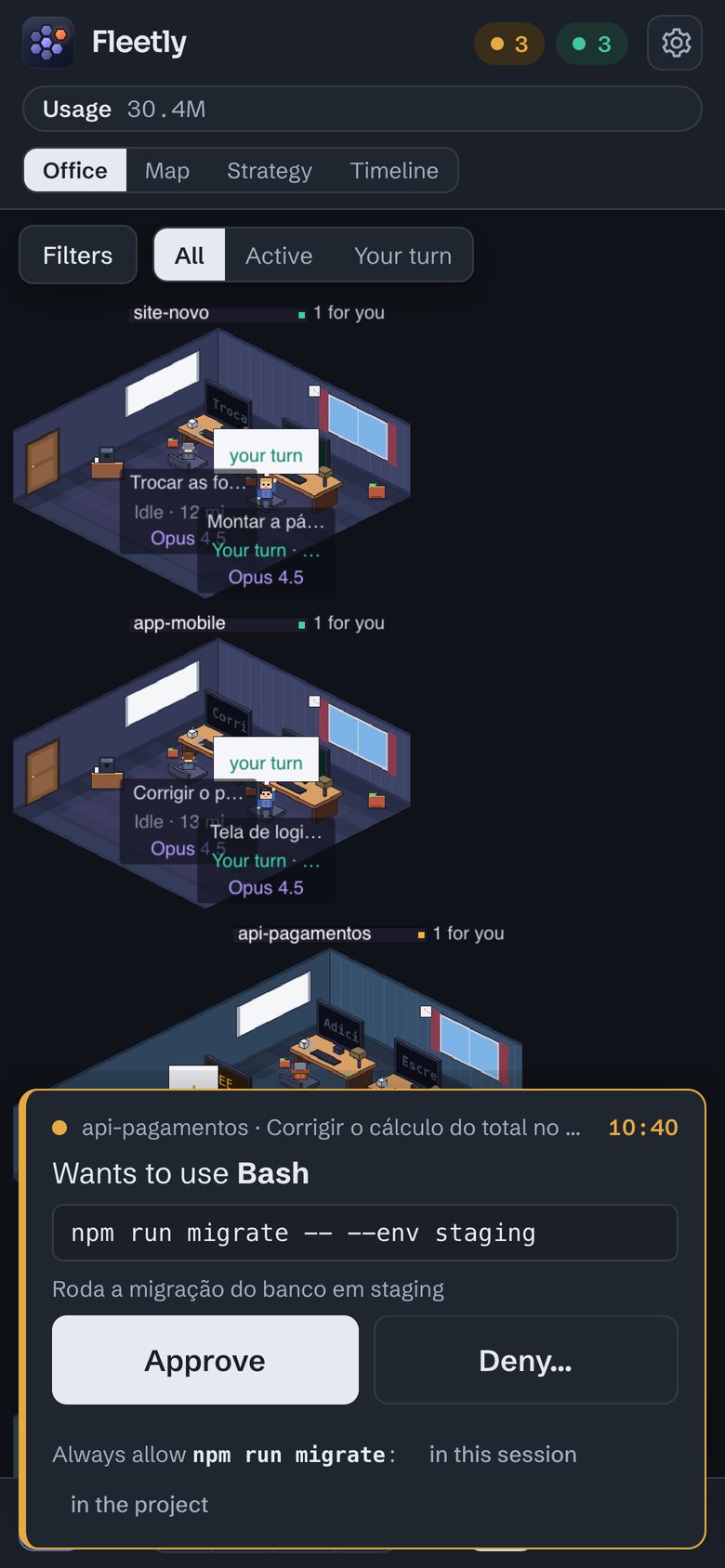
- In the store apps, on Android and on the computer, a permission request notification has Approve and Deny. So does a plan: Approve starts in the usual mode, Deny asks the agent to stop and ask what you want changed. An agent question opens the session, so you can pick the answer.
- On iPhone, tap the notification: the request opens as a sheet at the bottom of the screen, with big buttons.
- For requests to reach your phone, the hooks must be installed on the machine and the Approvals mode can’t be "Computer only".
Widget with the little bot
In the store apps (from version 1.1), a home screen widget shows your agents without opening the app: the little bot types while sessions are working, raises its hand when one needs you (with the number in orange) and sleeps when all is quiet. Tapping it opens Fleetly.
- Android: touch and hold the home screen → Widgets → Fleetly. The bot is truly animated.
- iPhone and iPad (iOS 17 or later): touch and hold the home screen → Edit → Add Widget → Fleetly, small or medium. On the lock screen too: touch and hold the lock screen → Customize → Lock Screen → tap the widget area → Fleetly (round, with the number; rectangular, with the text; or the line above the clock). Apple does not allow continuously animated widgets: there it changes pose when the state changes, and the medium size shows how long ago the numbers arrived.
- The numbers arrive on their own, even with the app closed, and right away when you open the app. With no news for more than 3 hours (the phone saving battery, for example), the bot sleeps and asks you to open the app.
Progress on the lock screen
In the store apps (from version 1.1), while agents work, the lock screen shows how many are working, who needs you, the main session and for how long, with a running clock. On iPhone (iOS 17.2 or later) it is a Live Activity, also in the Dynamic Island and on Apple Watch (iOS 18 or later), even with the app closed, and it goes away 10 min after everything finishes. On Android it is a silent pinned notification that goes away when everything finishes; on Android 16 (from the September 2025 update) it is promoted and gets a chip in the status bar, with how many need you (✋) or how many are working (⌨️).
It comes on. To turn it off on this device: Settings → Notifications and approvals → Progress on the lock screen.
Answer away from the computer
To continue on your phone a session that is open in VS Code, use Take over in Fleetly. See Chatting with sessions.
Didn’t find what you were looking for? Write to admin@fleetly.tools.